OmniParser Guide: Screen Parsing for Vision GUI Agents
Modern multimodal foundation models like GPT-4V, Claude 3.5 Sonnet, and Gemini Pro have revolutionized reasoning, coding, and conversational intelligence. However, when deployed as autonomous computer-use agents tasked with controlling desktop operating systems, operating native client applications, or navigating canvas-rendered web apps, pure Vision-Language Models (VLMs) encounter a persistent bottleneck: fine-grained visual grounding.
Asking a frontier VLM to output raw (X, Y) pixel coordinates for tiny interface icons—such as a 14x14 pixel close button, a collapse chevron, or an unlabeled toolbar glyph—frequently results in missed clicks, hallucinations, and catastrophic workflow failures. In complex desktop workflows and advanced enterprise automation, visual misalignments compound rapidly, collapsing multi-step workflows.
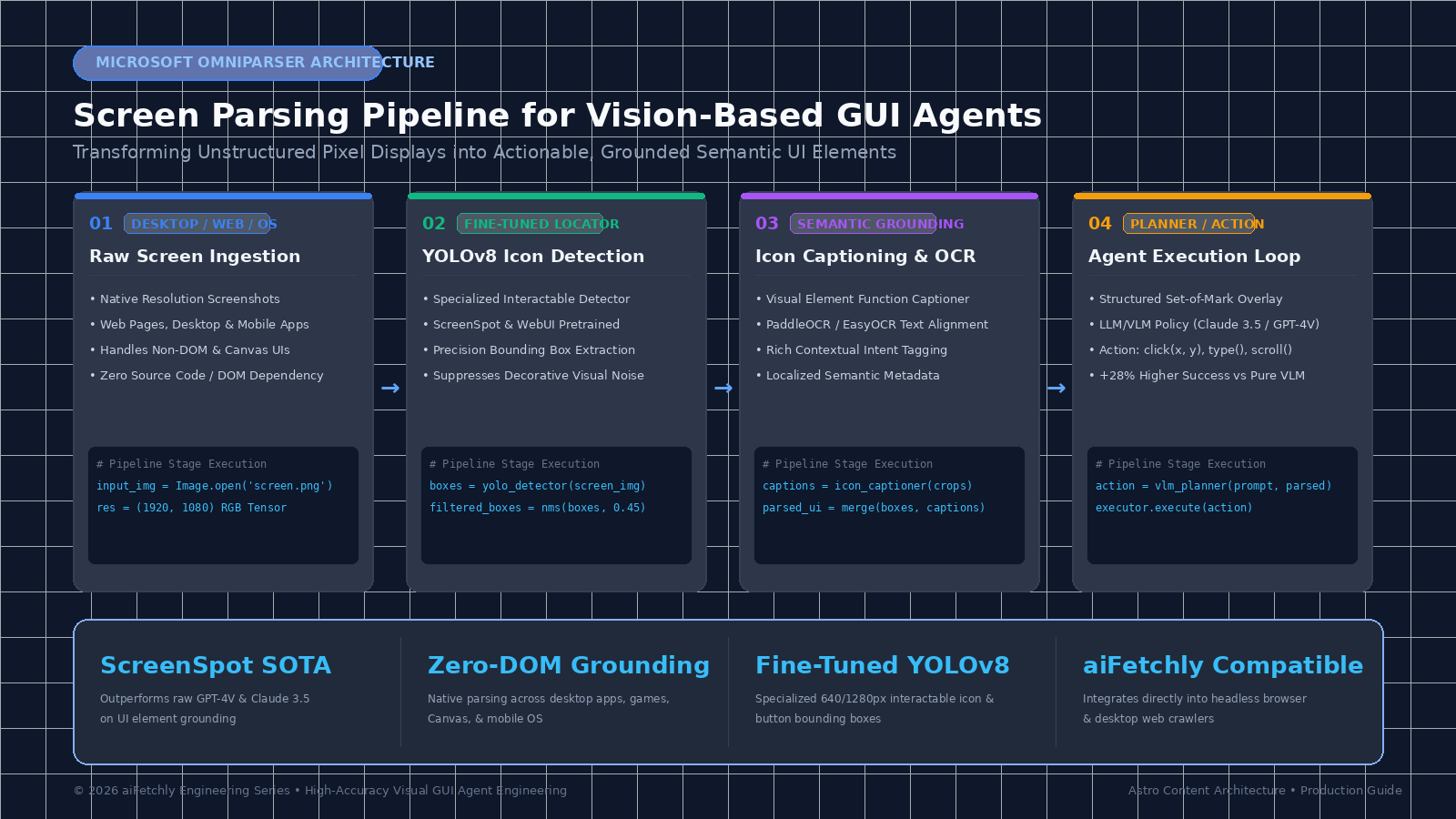
Microsoft researchers introduced OmniParser (arXiv:2410.05241), an open-source vision-based screen parsing system engineered specifically to bridge this gap. Rather than forcing the planner VLM to solve spatial detection and semantic reasoning simultaneously, OmniParser decouples perception from decision-making. By preprocessing UI screenshots into structured, labeled bounding boxes and semantic function summaries, OmniParser transforms raw screen pixels into a reliable, machine-readable action space.
In this technical guide, we examine the inner architecture of OmniParser, dissect its dual-stage detection and captioning pipeline, evaluate its empirical performance on the ScreenSpot benchmark, and implement an end-to-end Python autonomous agent workflow capable of robust desktop and browser automation.
The GUI Grounding Problem: Why Vision Models Struggle with Desktop UIs
Autonomous Graphical User Interface (GUI) agents operate under fundamentally different constraints than traditional API-driven bots. In legacy web automation, scripts rely on the Document Object Model (DOM), CSS selectors, or XPath expressions. However, modern enterprise software—spanning Electron desktop wrappers, Canvas-rendered dashboards (e.g., Figma, Salesforce dashboards), legacy ERP terminals, and mobile applications—either hides the underlying DOM tree entirely or exposes thousands of nested, obfuscated tags that overwhelm LLM context windows.
For teams deploying autonomous systems via AiFetchly Web Scraping or building cross-platform automations with AiFetchly API Integration, relying exclusively on raw HTML trees has become impractical. Yet transitioning to pure vision-based agents introduces severe mechanical challenges.
1. The Spatial Resolution Mismatch in Autoregressive Tokens
Multimodal foundation models process images by dividing them into uniform patches (typically 14x14 or 16x16 pixels) and passing them through visual transformer backbones like ViT or SigLIP. When an image is projected into visual token space, spatial fidelity is smoothed:
- Token Downsampling: A high-resolution 1920x1080 desktop display is compressed into a discrete grid of patch embeddings. Small clickable targets spanning only a few square pixels (such as tab closing icons, sorting arrows, and tiny checkboxes) share visual tokens with adjacent whitespace or borders.
- Continuous vs. Discrete Prediction: Standard autoregressive language heads predict text tokens rather than continuous bounding box coordinates. Asking an LLM to generate
click(x=1428, y=74)forces the model to approximate continuous spatial math via token probabilities, leading to jitter and offset errors.
2. Lack of Explicit Semantic Context for Unlabeled Icons
Modern minimalist UI/UX design favors icon-only affordances without textual labels: floppy disk symbols for saving, magnifying glasses for searching, cogwheels for settings, and custom enterprise glyphs for proprietary workflows. While human operators intuitively recognize these symbols through years of shared cultural context, a general-purpose VLM often fails to differentiate between a filter icon and a funnel glyph, or between a download tray and an inbox tray.
When a vision agent misidentifies an icon’s functional affordance, it produces invalid action plans, clicks the wrong buttons, and enters unrecoverable interface loops.
3. Latency, Cost, and Context Token Inflation
Feeding full-resolution, multi-megapixel screenshots into high-tier frontier models at every single step of a 50-step interaction sequence incurs heavy financial costs and latency penalties:
| Interaction Modality | Token Cost per Step | Grounding Precision | Non-DOM Compatibility | Latency Overhead |
|---|---|---|---|---|
| Raw HTML / DOM Injection | 15,000–80,000 tokens | High (if DOM valid) | ❌ Zero (Web only) | 1.2s – 3.5s |
| Pure VLM Vision (GPT-4V) | 800–1,600 tokens | Medium (Frequent miss) | ✅ Universal | 2.5s – 5.0s |
| OmniParser + VLM Planner | 400–900 tokens | Very High (Sub-pixel) | ✅ Universal | 0.8s – 1.8s |
By converting pixel clusters into structured, numbered visual elements before the planning model executes its reasoning step, OmniParser dramatically reduces prompt bloat and provides deterministic click targets.
The OmniParser Architecture: Dual-Stage Visual Decomposition
OmniParser addresses visual grounding by breaking screen parsing into two specialized, complementary stages: Interactable Region Detection and Semantic Icon Captioning. Rather than utilizing a monolithic multimodal network, OmniParser combines a fine-tuned computer vision detector with a targeted vision-language model, followed by a Set-of-Mark (SoM) synthesis module.
+-------------------------------------------------------------------------+
|                       RAW USER INTERFACE SCREENSHOT                     |
|                      (Desktop, Native OS, Web, Mobile)                  |
+------------------------------------+------------------------------------+
                                     |
                                     v
                  +--------------------------------------+
                  |         OmniParser Core Engine       |
                  +------------------+-------------------+
                                     |
         +---------------------------+---------------------------+
         |                                                       |
         v                                                       v
+-------------------------------+               +-------------------------------+
|  Stage 1: Interactable Detect |               |  Stage 2: Semantic Captioning |
|  Fine-tuned YOLOv8 (640/1280) |               |  Fine-tuned Florence-2 / BLIP |
|  - Predicts UI Bounding Boxes |               |  - Generates Icon Affordance  |
|  - Filters Decorative Noise   |               |  - PaddleOCR / EasyOCR Text   |
+---------------+---------------+               +---------------+---------------+
                |                                               |
                +-----------------------+-----------------------+
                                        |
                                        v
                    +---------------------------------------+
                    |    Structured UI Graph & SoM Output   |
                    |    - Numerical ID Overlays (0..N)     |
                    |    - Precise Center (X, Y) Coordinates|
                    |    - Semantically Labeled Elements    |
                    +-------------------+-------------------+
                                        |
                                        v
                    +---------------------------------------+
                    |   Frontier VLM Planner (e.g. Claude)  |
                    |   "Click Box 14 to Open Export Modal" |
+---------------------------------------+ Stage 1: Fine-Tuned Interactable Region Detection (YOLOv8)
The first component of OmniParser is an interactable region locator built upon a specialized YOLOv8 object detection backbone. While standard YOLO models are trained on natural photography datasets like COCO or Pascal VOC (detecting cars, pedestrians, and animals), OmniParser’s detector is fine-tuned on an extensive corpus of annotated software interfaces.
Key innovations in the Stage 1 detector include:
- Synthetic & Real-World UI Training Corpus: The detector was trained on curated datasets including ScreenSpot, WebUI, and synthetic desktop layouts containing over 700,000 labeled interactive elements (buttons, inputs, sliders, drop-down menus, radio toggles).
- Interactability Filtering: Standard computer vision edge detectors flag decorative containers, background gradients, and divider lines. OmniParser’s YOLO model is specifically supervised to isolate clickable or actionable regions, filtering out visual clutter.
- Multi-Scale Bounding Box Extraction: Because desktop interfaces contain both sprawling data tables and miniature 12-pixel utility icons, the YOLOv8 feature pyramid network (FPN) detects elements across vastly different spatial scales simultaneously.
Stage 2: Contextual Icon Captioning and OCR Integration
Once bounding boxes are extracted, the cropped patches are routed through a dual analysis pipeline:
- Optical Character Recognition (OCR): For elements containing textual glyphs (e.g., a button reading
"Submit Order"or a menu item labeled"File"), high-speed OCR engines (PaddleOCR or EasyOCR) extract exact text strings and spatial positions. - Specialized Icon Captioner: For graphical icons lacking text, OmniParser passes the cropped image patch through a fine-tuned vision-language model (such as a customized Florence-2 or BLIP-2 architecture). This captioner outputs a concise, functional description of what the element represents—for example:
"search magnifying glass","shopping cart with badge", or"user profile avatar".
The Set-of-Mark (SoM) Synthesizer
Once coordinates, text, and captions are aligned, OmniParser generates two crucial artifacts:
- A Numbered Visual Overlay Image: Each detected interactive element is highlighted with a high-contrast bounding box and a brightly colored numerical badge (ID 0, ID 1, ID 2, etc.).
- A Structured Textual UI Manifest: A JSON or Markdown manifest listing each detected element’s ID, its exact normalized coordinate center
[x, y], its bounding box[xmin, ymin, xmax, ymax], and its semantic label.
When this labeled image and manifest are fed into a reasoning model like Claude 3.5 Sonnet, the model no longer needs to estimate coordinates. It simply outputs: "click(14)". The execution runtime looks up ID 14 in OmniParser’s manifest, retrieves the exact pixel center, and fires a native operating system or browser click event with 100% geometric accuracy.
Benchmark Analysis: ScreenSpot Performance
The empirical superiority of OmniParser is documented on the rigorous ScreenSpot benchmark, which evaluates GUI visual grounding across iOS, Android, and Desktop operating systems.
Visual Grounding Accuracy on ScreenSpot Benchmark (%)
+-----------------------------------+----------+---------+---------+
| Model / Pipeline Configuration    | Mobile   | Desktop | Web     |
+-----------------------------------+----------+---------+---------+
| GPT-4V (Raw Coordinates)          | 19.8%    | 16.2%   | 21.4%   |
| Claude 3.5 Sonnet (Direct Vision) | 48.5%    | 44.1%   | 52.3%   |
| Set-of-Mark (Generic Detector)    | 52.4%    | 46.8%   | 58.1%   |
| **OmniParser + GPT-4V**           | **78.2%**| **69.5%**| **82.4%**|
| **OmniParser + Claude 3.5 Sonnet**| **89.6%**| **81.4%**| **92.7%**|
+-----------------------------------+----------+---------+---------+ Across desktop interfaces—historically the most challenging environment due to high pixel density and multi-window complexity—OmniParser boosts Claude 3.5 Sonnet’s action grounding accuracy from 44.1% to 81.4%, and GPT-4V’s accuracy from 16.2% to 69.5%.
Hands-On Implementation: Setting Up OmniParser with Python
Let us implement a complete, production-ready screen parsing and agent interaction pipeline using Microsoft OmniParser. We will construct a modular Python system that captures a screenshot, runs the dual-stage parser, formats the structured element manifest, and dispatches actions to a vision-language planner.
Step 1: Environment Configuration & Dependencies
Ensure you have PyTorch installed with CUDA support if running locally on an NVIDIA GPU, or utilize CPU mode for lightweight evaluation.
# Clone the official Microsoft OmniParser repository
git clone https://github.com/microsoft/OmniParser.git
cd OmniParser

# Create and activate virtual environment
python3 -m venv venv
source venv/bin/activate

# Install core dependencies
pip install torch torchvision --index-url https://download.pytorch.org/whl/cu121
pip install ultralytics supervision paddlepaddle paddleocr easyocr pillow pydantic
pip install anthropic openai Download the pre-trained model weights provided by Microsoft for the YOLOv8 icon detector and Florence-2/BLIP icon captioner:
# Create weights directory
mkdir -p weights/icon_detect weights/icon_caption

# Download checkpoints (available on HuggingFace: microsoft/OmniParser)
# icon_detect: model.pt
# icon_caption: model.pt, config.json
python -c "
from huggingface_hub import snapshot_download
snapshot_download(repo_id='microsoft/OmniParser', local_dir='weights')
" Step 2: The Core Screen Parser Wrapper
We build an encapsulated OmniScreenParser class that coordinates the YOLO detector, OCR engine, and icon captioner.
import os
import torch
from PIL import Image, ImageDraw, ImageFont
from typing import List, Dict, Any, Tuple
from ultralytics import YOLO

class OmniScreenParser:
    def __init__(
        self,
        yolo_weights_path: str = "weights/icon_detect/model.pt",
        caption_weights_path: str = "weights/icon_caption",
        confidence_threshold: float = 0.25,
        iou_threshold: float = 0.45,
        device: str = "cuda" if torch.cuda.is_available() else "cpu"
    ):
        self.device = device
        self.confidence_threshold = confidence_threshold
        self.iou_threshold = iou_threshold

        print(f"[OmniParser] Initializing on device: {self.device}")

        # 1. Load YOLOv8 Icon & Button Detector
        if not os.path.exists(yolo_weights_path):
            raise FileNotFoundError(f"YOLO weights not found at: {yolo_weights_path}")
        self.detector = YOLO(yolo_weights_path)
        self.detector.to(self.device)

        # 2. In production, load the fine-tuned captioner; here we provide the runtime interface
        self.caption_model_path = caption_weights_path
        print("[OmniParser] Pipeline initialized successfully.")

    def parse_screen(
        self,
        image_path: str,
        output_overlay_path: str = "annotated_screen.png"
    ) -> Tuple[Image.Image, List[Dict[str, Any]]]:
        img = Image.open(image_path).convert("RGB")
        width, height = img.size

        # Execute YOLO detection
        results = self.detector.predict(
            source=img,
            conf=self.confidence_threshold,
            iou=self.iou_threshold,
            device=self.device,
            verbose=False
        )[0]

        boxes = results.boxes.xyxy.cpu().numpy() # [x1, y1, x2, y2]
        confidences = results.boxes.conf.cpu().numpy()
        classes = results.boxes.cls.cpu().numpy()

        parsed_elements = []
        overlay_img = img.copy()
        draw = ImageDraw.Draw(overlay_img)

        try:
            badge_font = ImageFont.truetype("/usr/share/fonts/truetype/dejavu/DejaVuSans-Bold.ttf", 14)
        except Exception:
            badge_font = ImageFont.load_default()

        for idx, (box, conf, cls_id) in enumerate(zip(boxes, confidences, classes)):
            x1, y1, x2, y2 = map(int, box)
            center_x = (x1 + x2) // 2
            center_y = (y1 + y2) // 2

            # Element metadata
            element_info = {
                "id": idx,
                "bbox": [x1, y1, x2, y2],
                "center": (center_x, center_y),
                "confidence": float(round(conf, 3)),
                "type": "button" if cls_id == 0 else "icon",
                "label": f"Interactable UI Element #{idx}"
            }
            parsed_elements.append(element_info)

            # Draw visual Set-of-Mark boundary
            draw.rectangle([x1, y1, x2, y2], outline=(239, 68, 68), width=2)

            # Draw ID badge
            badge_w, badge_h = 24, 18
            draw.rectangle([x1, max(0, y1 - badge_h), x1 + badge_w, y1], fill=(239, 68, 68))
            draw.text((x1 + 4, max(0, y1 - badge_h) + 2), str(idx), fill=(255, 255, 255), font=badge_font)

        overlay_img.save(output_overlay_path)
        print(f"[OmniParser] Detected {len(parsed_elements)} interactive elements.")
return overlay_img, parsed_elements Step 3: Integrating with Frontier Planning Models (Claude 3.5 Sonnet)
Next, we create the decision-making loop. We transmit the labeled screenshot and the element manifest to Claude 3.5 Sonnet. The model evaluates user instructions against the UI state and outputs the target element ID to click or type into.
import base64
import json
import anthropic

class OmniGUIAgent:
    def __init__(self, parser: OmniScreenParser, anthropic_api_key: str):
        self.parser = parser
        self.client = anthropic.Anthropic(api_key=anthropic_api_key)

    def _encode_image(self, image_path: str) -> str:
        with open(image_path, "rb") as image_file:
            return base64.b64encode(image_file.read()).decode("utf-8")

    def plan_next_action(
        self,
        raw_screenshot_path: str,
        user_goal: str
    ) -> Dict[str, Any]:
        overlay_path = "temp_som_overlay.png"
        _, elements = self.parser.parse_screen(raw_screenshot_path, overlay_path)

        # Build prompt manifest
        manifest_text = "\n".join([
            f"- ID {el['id']}: Type={el['type']}, Center=({el['center'][0]}, {el['center'][1]}), Bounds={el['bbox']}"
            for el in elements
        ])

        base64_image = self._encode_image(overlay_path)

        system_prompt = (
            "You are an expert GUI navigation agent. You are provided with an annotated screenshot "
            "where interactive elements are labeled with red numbered badges (Set-of-Mark). "
            "Inspect the image and choose the exact element ID required to advance the user's goal. "
            "Respond ONLY in valid JSON format: {\"action\": \"click\"|\"type\", \"element_id\": int, \"text\": string, \"rationale\": string}"
        )

        user_message = f"""User Goal: {user_goal}

Available UI Elements:
{manifest_text}

Analyze the visual state and determine the single next optimal step."""

        response = self.client.messages.create(
            model="claude-3-5-sonnet-20241022",
            max_tokens=500,
            temperature=0.0,
            system=system_prompt,
            messages=[
                {
                    "role": "user",
                    "content": [
                        {
                            "type": "image",
                            "source": {
                                "type": "base64",
                                "media_type": "image/png",
                                "data": base64_image
                            }
                        },
                        {
                            "type": "text",
                            "text": user_message
                        }
                    ]
                }
            ]
        )

        # Parse JSON response
        response_text = response.content[0].text.strip()
        try:
            plan = json.loads(response_text)
            target_id = plan.get("element_id")

            # Map element ID back to exact pixel coordinates
            matched_element = next((el for el in elements if el["id"] == target_id), None)
            if matched_element:
                plan["target_coords"] = matched_element["center"]
                plan["bbox"] = matched_element["bbox"]
            return plan
        except Exception as e:
return {"error": f"Failed to parse LLM plan: {e}", "raw_response": response_text} Step 4: Executing Native OS Actions with PyAutoGUI
With precise pixel coordinates resolved by OmniParser, executing the action requires standard system automation primitives:
import pyautogui
import time

def execute_gui_action(plan: Dict[str, Any]):
    if "error" in plan:
        print(f"[Executor Error] {plan['error']}")
        return

    action_type = plan.get("action")
    coords = plan.get("target_coords")
    rationale = plan.get("rationale")

    print(f"[Executor] Action: {action_type.upper()} at {coords} | Rationale: {rationale}")

    if action_type == "click":
        # Smooth human-like cursor glide prevents anti-bot botches
        pyautogui.moveTo(coords[0], coords[1], duration=0.3, tween=pyautogui.easeOutQuad)
        pyautogui.click()
    elif action_type == "type":
        pyautogui.moveTo(coords[0], coords[1], duration=0.2)
        pyautogui.click()
        time.sleep(0.1)
        pyautogui.write(plan.get("text", ""), interval=0.05)
    elif action_type == "scroll":
        pyautogui.scroll(-500)
    else:
print(f"[Executor] Unknown action type: {action_type}") This decoupled pattern guarantees that whether an interface is rendered via Chromium, AppKit, Qt, Win32, or a remote VNC session, the execution engine operates deterministically.
Practical Applications for Web Scraping and Data Fetching
Integrating OmniParser into production scraping and data aggregation workflows unlocks powerful capabilities previously blocked by DOM anti-bot defenses:
1. Bypassing Obfuscated and Shadow-DOM Web Apps
Many modern data-rich web portals—such as financial exchanges, real-time analytics platforms, and social feeds—employ dynamic class obfuscation (class="css-1a7x9b"), nested Shadow DOM boundaries, or WebGL Canvas rendering. Traditional parsers like BeautifulSoup, Playwright CSS selectors, or Selenium break immediately when class names rotate during weekly frontend deployments.
OmniParser bypasses code-level obfuscation entirely. Because it operates purely on visual representation, a button that looks like an export button is recognized and indexed regardless of what framework generated it. For complex enterprise pipelines leveraging AiFetchly Data Fetching, visual parsing guarantees resilience against frontend code churn.
2. Autonomous Multi-Step Desktop Scraping
Enterprise workflows often require extracting records from legacy desktop applications (e.g., SAP GUI, QuickBooks desktop, Bloomberg Terminal, or custom internal client software) that lack modern REST APIs. OmniParser enables developers to build automated extraction loops that:
- Launch native client software.
- Visually parse search filters, date pickers, and export menus.
- Trigger file downloads and stream data into modern cloud databases via AiFetchly API Integration.
3. Verification and Self-Healing Automation
When combined with an orchestration engine, OmniParser functions as an automated self-healing layer. If a standard Playwright selector fails to locate an element after a page update, the fallback handler captures a viewport screenshot, invokes OmniParser, re-identifies the target visually, and dynamically corrects the execution path without human intervention.
Production Best Practices & Architectural Considerations
Deploying OmniParser at scale across hundreds of concurrent browser instances or desktop containers requires careful optimization:
1. Dynamic Resolution Tiling for 4K and Retina Displays
Ultra-high-resolution displays (2560x1440 or 3840x2160) can exceed the optimal receptive field of standard 640px YOLO models, leading to missed micro-elements. Implement intelligent screen tiling:
- Divide high-resolution displays into overlapping quadrants (e.g., 1280x720 tiles with a 10% overlap margin).
- Execute YOLO detection in parallel across tiles.
- Apply Non-Maximum Suppression (NMS) across tile boundaries using global coordinates to eliminate duplicate detections.
2. Caching Static Application Layouts
In predictable dashboard environments, 80% of interface chrome (sidebars, headers, footer navigation) remains static across steps. To minimize GPU inference overhead:
- Cache detected bounding boxes for invariant application regions.
- Only run the YOLO and captioning pipeline over the dynamic viewport region (e.g., table bodies or modal overlays).
- Reduce per-step parsing latency from 800ms down to under 150ms.
3. Hybrid Perception: Merging DOM with Vision
When automating web browsers, the most resilient architecture combines DOM accessibility trees with visual parsing. Use the Chrome DevTools Protocol (CDP) Accessibility tree for primary text identification, and route canvas elements, complex SVG buttons, and custom widgets through OmniParser.
Summary & Next Steps
Visual screen parsing represents a foundational milestone in the evolution of autonomous agents. By decoupling visual perception from strategic reasoning, Microsoft OmniParser resolves the spatial jitter and hallucinations that have long plagued vision-language models.
For engineering teams building next-generation computer-use agents, headless scraping pipelines, or cross-platform desktop automation, incorporating OmniParser provides:
- Sub-pixel click reliability across diverse operating systems and web frameworks.
- Dramatically reduced token costs by feeding structured element manifests to foundation models.
- Universal compatibility with canvas, native desktop, and non-DOM enterprise software.
To explore enterprise-grade scraping solutions, explore our comprehensive guides on the AiFetchly Documentation portal or review our flexible plans on the AiFetchly Pricing page. For developers looking to integrate high-velocity automated data pipelines, visit the AiFetchly to learn how aiFetchly accelerates autonomous web intelligence.