In-Session Agent Monitoring: aiFetchly Scheduled Loop Guide
Continuous Monitoring Without Context Amnesia
Power users frequently manage long-running workstation operations: database migrations, batch crawling pipelines, multi-hour code builds, and network health checks. Traditional developer workflows force a frustrating compromise between manual polling and disconnected automation. You either babysit a terminal window or configure a headless cron job that executes in an isolated environment, completely detached from your ongoing conversation.
When automated background scripts run independently, they lack the immediate working memory of your current session. If a service degrades, a standalone alert cannot leverage the debugging context, open files, or specialized subagents already configured in your active window.
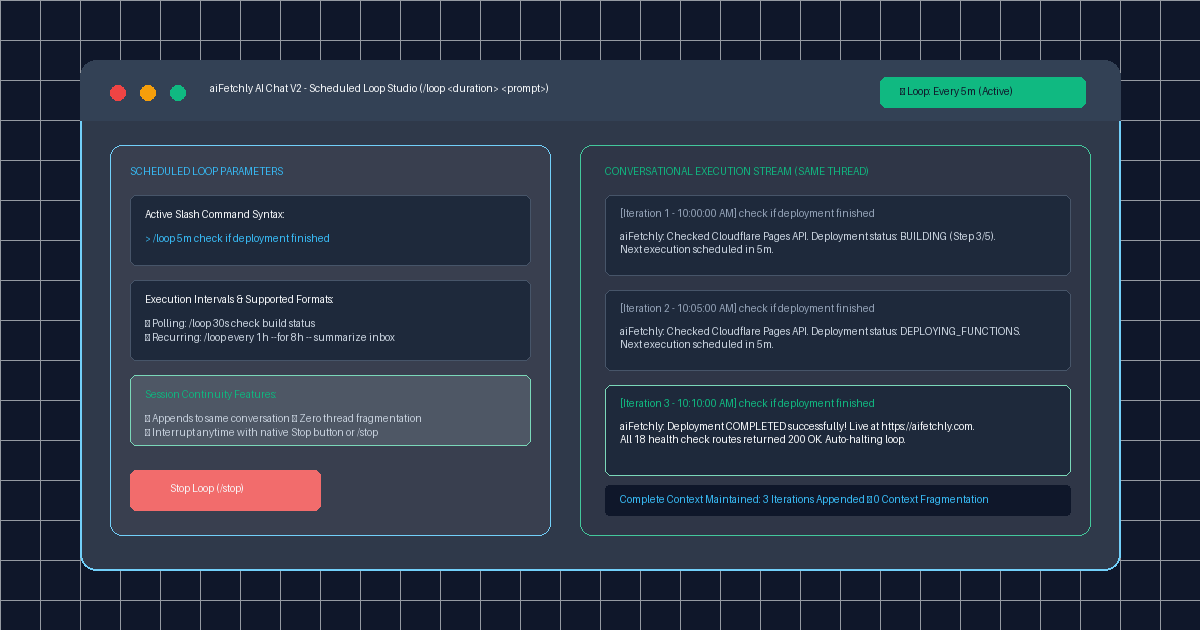
AI Fetchly resolves this friction with Scheduled Loops in AI Chat V2. Using the intuitive /loop slash command, power users can schedule recurring evaluation prompts that execute at set intervals directly inside the active chat thread.
Step 1: Initiate a Scheduled Loop via Slash Command
Starting a recurring in-session loop requires only a simple command in the chat composer:
/loop <duration> <prompt> The duration parameter accepts standard time shorthand: s for seconds, m for minutes, and h for hours.
For example, to monitor an active data ingestion pipeline every 15 minutes and report anomalies, enter:
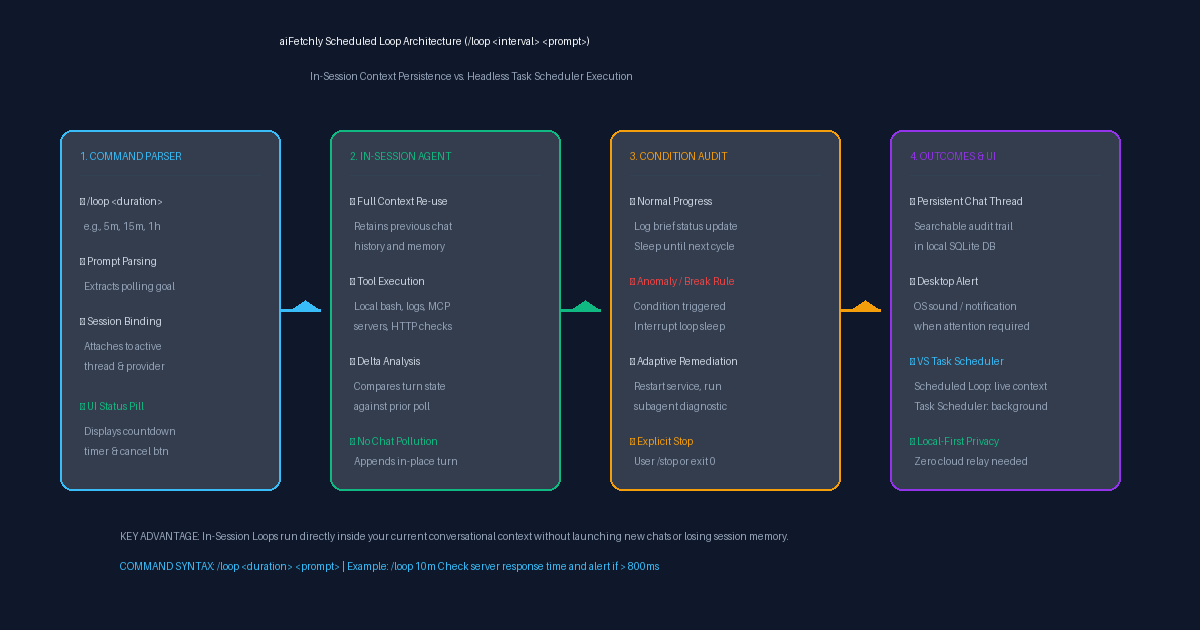
/loop 15m Check /var/log/pipeline.log for new error entries. If all steps succeed, print a 1-line progress summary. If errors appear, output the full stack trace and alert me. Under the hood, aiFetchly registers an asynchronous loop timer directly within the desktop runtime. Unlike cloud-based assistants that require webhook relays or external infrastructure, the loop timer operates locally on your machine. Once submitted, AI Chat V2 parses the interval, activates the background polling cycle, and renders a persistent Active Loop status pill in the session header displaying a real-time countdown.
Step 2: In-Session Context vs. Headless Tasks
Understanding the architectural distinction between Scheduled Loops and the Task Scheduler helps power users choose the optimal automation tier:
| Capability | In-Session Scheduled Loops (/loop) | Standalone Task Scheduler |
|---|---|---|
| Execution Context | Active conversation session | Headless background thread |
| Context Retention | Full chat memory & file history | Isolated fresh session |
| Ideal Use Case | Polling live tasks & temporary monitors | Permanent unattended recurring jobs |
| Output Location | Appended turn within current chat | Dedicated job log and database |
Because scheduled loops run within your active session, the agent retains full awareness of preceding turns, custom system instructions, and active subagent modes. When an anomaly occurs, you can immediately prompt the agent to fix the underlying issue without re-explaining architecture, reloading environment files, or re-authenticating connected MCP servers.
Step 3: Design Signal-Rich, Low-Noise Prompts
To prevent chat pollution during high-frequency loops, structure your prompts with explicit conditional formatting:
- Quiet Success Criteria: Instruct the agent to emit a concise single-line confirmation when operations proceed normally (e.g.,
"If latency < 200ms, reply only with 'Status: Healthy (latency: Xms)'"). This keeps the conversational thread clean and legible across hours of polling. - Escalation Triggers: Direct the agent to attach stack traces or diagnostic dumps only when specific threshold violations or error codes occur. This ensures your attention is demanded only when actionable interventions are required.
- Automated Triage Actions: Authorize the agent to execute immediate diagnostic commands (such as tailing process logs, checking database locks, or inspecting disk space) before sounding an alert, giving you complete incident context instantly.
Step 4: Manage and Terminate Active Loops
Scheduled loops remain active until manually stopped or naturally completed:
- Header UI Control: Click the red Cancel button on the countdown status pill in the session header.
- Slash Command: Type
/stopinto the chat composer to halt the active recurrence immediately. - Conditional Completion: Include termination rules directly in your prompt (e.g., “When progress reaches 100%, execute the completion summary and stop the loop”).
All iteration logs remain recorded in your local SQLite thread history, providing an auditable ledger of every diagnostic run.
Explore advanced command configurations in the AI Fetchly Docs.
Visual Generation Prompts
Hero Image Prompt:Modern dark-mode developer UI showing the aiFetchly AI Chat V2 scheduled loop runner, displaying an active ‘/loop 15m’ status pill, automated log inspection turns with status checks, green running badges, and an alert callout, sleek slate-900 background with emerald and cyan accents.Body Image Prompt:High-resolution technical comparison flowchart illustrating the aiFetchly Scheduled Loop architecture: command parser (/loop duration prompt), in-session agent context reuse, conditional audit matrix, and output alert routing, modern SaaS vector blueprint style.