Extending aiFetchly with MCP: Developer Tutorial
Why Model Context Protocol (MCP) Matters for Desktop AI Agents
While out-of-the-box scraping and lead generation engines handle public web data, engineering teams frequently require AI agents that interact directly with internal infrastructure—querying private Postgres instances, inspecting local Git repositories, or triggering custom API webhooks.
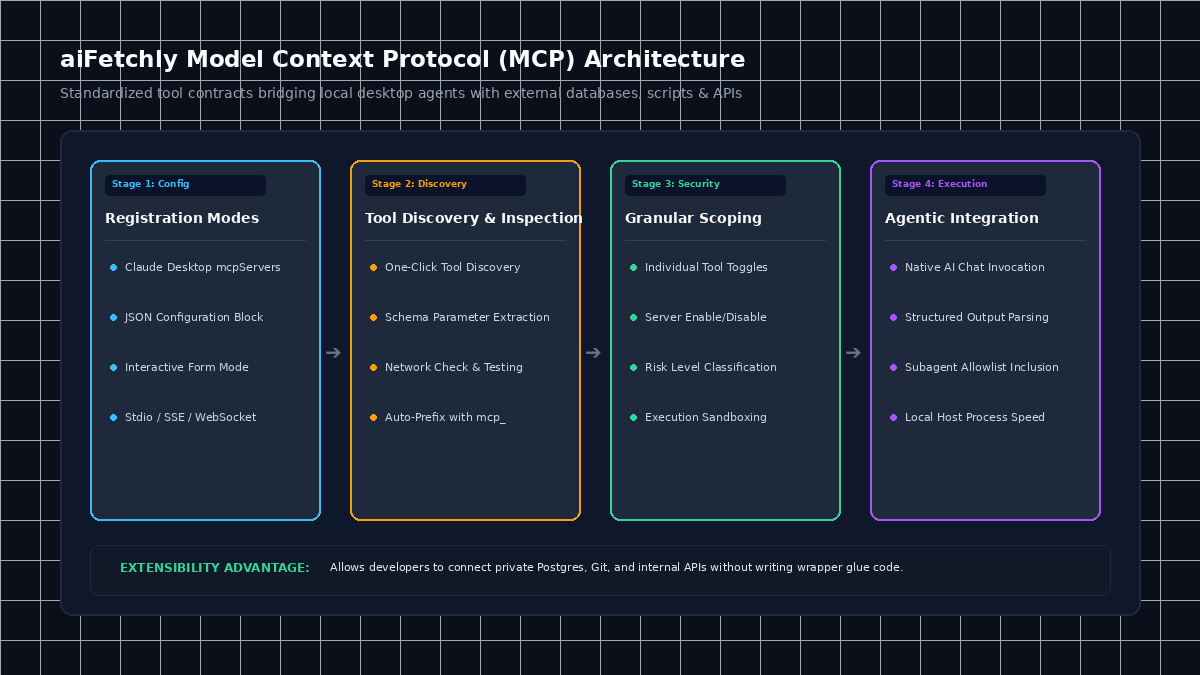
Historically, connecting desktop AI assistants to proprietary infrastructure required writing bespoke wrapper scripts or fragile application plugins. The open Model Context Protocol (MCP) standardizes this interaction layer, providing a secure, structured communication contract between language models and external tool systems.
AI Fetchly implements native MCP support within its desktop workspace. By adding MCP servers, developers can expand aiFetchly’s capabilities to execute local command-line tools, query production databases, and call specialized services—all while preserving strict operational boundaries on local hardware.
Supported MCP Transports: Stdio, SSE, and WebSocket
aiFetchly supports three distinct transport layers to accommodate both local utilities and remote services:
| Transport Type | Protocol Mechanism | Best For | Typical Execution Command |
|---|---|---|---|
| Stdio | Standard I/O Subprocess | Local CLI utilities, npm packages, Python tools | npx @modelcontextprotocol/server-postgres, uvx |
| SSE | Server-Sent Events (HTTP) | Cloud-hosted endpoints, internal HTTP microservices | https://api.internal-tools.corp/events |
| WebSocket | Persistent Bidirectional Socket | Real-time streaming services, live telemetry | wss://streaming-agent.local:8080 |
Step-by-Step Tutorial: Integrating MCP Servers into aiFetchly
Follow this walkthrough to register, discover, and invoke custom MCP tools inside aiFetchly.
Step 1: Access the MCP Tool Manager
In aiFetchly, MCP servers are managed directly inside the chat interface rather than a disconnected settings screen:
- Launch AI Chat or the AI Marketing Assistant (click the chat icon or press
Cmd/Ctrl + K). - In the chat toolbar, click the MCP Tools button (the server/network icon).
- The MCP Server Management dialog will open, displaying all configured servers and their current status.
Step 2: Add Your Server (Form Mode vs. JSON Mode)
Click Add Server (+). aiFetchly provides two configuration modes:
- Form Mode: Fill out individual fields (Server Name, Transport Type, Host/Command, and Port). Ideal for quick single-tool additions.
- JSON Mode (Claude Desktop Compatible): Paste standard
mcpServersJSON blocks directly:
{
  "mcpServers": {
    "sqlite-analytics": {
      "command": "uvx",
      "args": ["mcp-server-sqlite", "--db-path", "./data/analytics.db"]
    },
    "git-inspector": {
      "command": "npx",
      "args": ["-y", "@modelcontextprotocol/server-git"]
    }
  }
} Click Add to register the servers. They will immediately appear with an Enabled status badge.
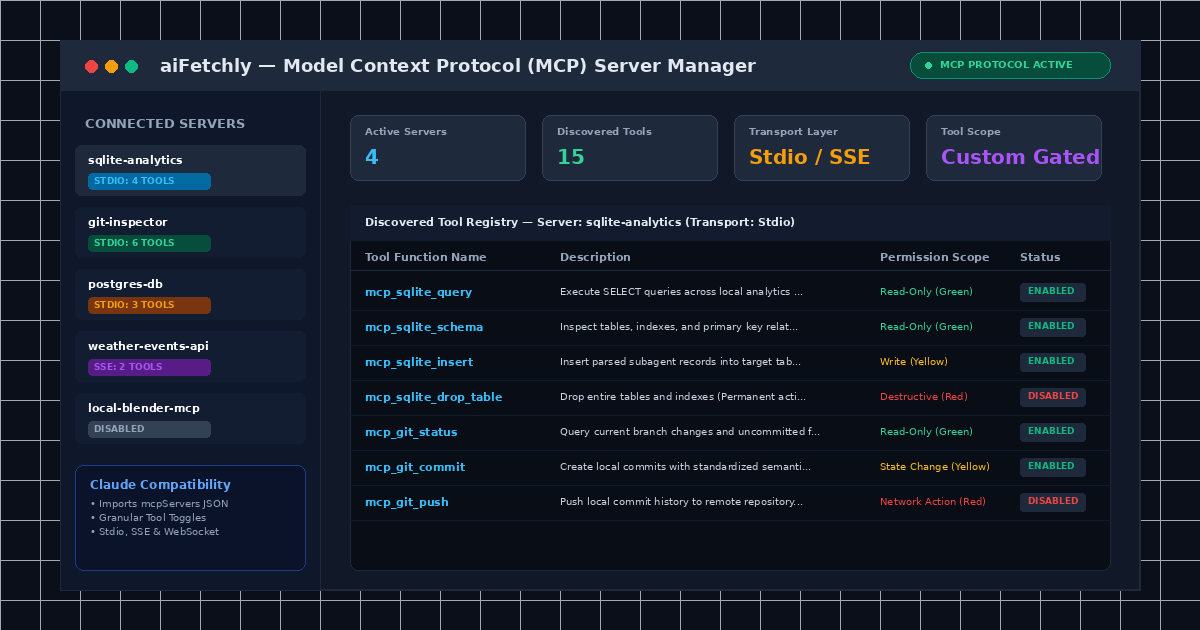
Step 3: Discover and Scope Available Tools
Once a server is registered, aiFetchly must discover its exposed functions:
- Click the Discover Tools (magnifying glass) icon next to the server entry.
- aiFetchly connects via the configured transport and retrieves all callable functions.
- Expand the server entry to review discovered tools (prefixed with
mcp_during execution). - Use the granular toggle switches to disable unneeded or sensitive functions, keeping the agent’s tool surface strictly scoped.
Step 4: Execute MCP Tools in AI Chat
With tools discovered and enabled, open any AI Chat session. The agent autonomously recognizes the newly available tools:
"Query the sqlite-analytics server for all prospects added this week,
and cross-reference their domain records with our local Git schemas." The agent invokes the appropriate mcp_ tool, processes the structured output, and returns validated results directly inside your conversation.
For advanced transport parameters and authentication options, consult the AI Fetchly Docs.
Visual Generation Prompts
Hero Image Prompt:Modern SaaS application window in dark mode, showing the aiFetchly MCP Server Manager dialog with active Stdio and SSE server entries, discovered tool lists with permission badges, and Claude Desktop JSON import preview, cyan and emerald glowing accents, isometric 3D perspective.Body Image Prompt:Clean technical architecture diagram illustrating the Model Context Protocol in aiFetchly: AI Chat client communicating across Stdio subprocesses, SSE endpoints, and local databases, dark slate vector styling.