Computer-Use AI Agents: Architecture & GUI Guide
The Problem: The Limits of API and DOM-Based Automation
Software automation historically required developers to navigate two extremes: brittle Robotic Process Automation (RPA) scripts that break on pixel shifts, or headless DOM scrapers that fail on non-web interfaces. As enterprise workflows expand across complex software ecosystems, these conventional automation approaches hit severe operational boundaries:
- The Closed-API Reality: Many critical enterprise applications—legacy desktop software, custom ERP platforms, Canvas-rendered web apps, and native operating system utilities—provide no public REST APIs or webhooks.
- Obfuscated and Canvas-Rendered UIs: Modern web platforms increasingly render dynamic graphics directly to HTML5
<canvas>elements, WebGL viewports, or virtualized tables without exposing standard DOM nodes or accessibility attributes. Traditional headless tools like Puppeteer or Cheerio cannot inspect these elements. - Brittle XPath and Selector Drift: DOM-based automation scripts break whenever product design teams refactor component trees, minify CSS class names, or introduce randomized ID hashes in production builds.
- Cross-Application Fragmentation: Real-world knowledge tasks rarely stay confined to a single browser tab. A workflow often begins in a web browser, requires downloading a PDF, opening an accounting desktop application, reconciling records in a spreadsheet, and pasting confirmation keys into an internal terminal. Headless scrapers cannot cross the boundary from browser sandbox to desktop operating system.
The Solution: Vision-Grounded Computer-Use Agents
To automate arbitrary software interfaces without relying on explicit code hooks or selectors, frontier AI engineering has introduced Computer-Use AI Agents. Pioneered by multimodal foundation models such as Anthropic’s Claude 3.5 Sonnet Computer Use and Vision-Language-Action (VLA) architectures, computer-use agents interact with computers exactly like human operators: looking at the screen, understanding visual layout, and issuing native mouse and keyboard inputs.
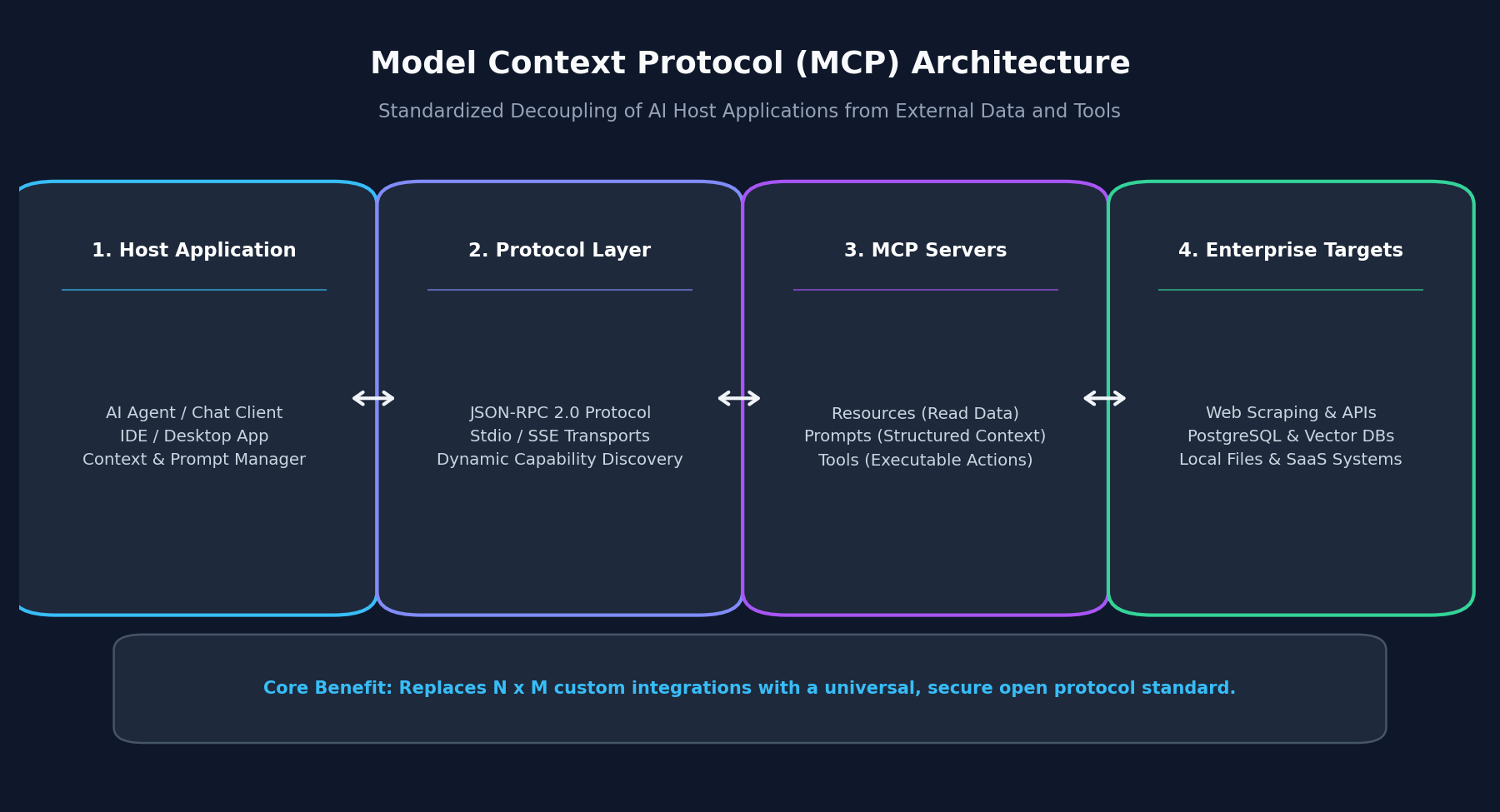
Instead of parsing raw HTML strings, a computer-use agent takes high-resolution viewport screenshots, identifies interactive interface elements semantically (buttons, input fields, dropdown menus), calculates spatial coordinate bounds, and dispatches native operating system events.
Comparing Automation Paradigms
| Feature | Legacy RPA (UiPath, AutoHotkey) | Headless DOM Scrapers | Computer-Use AI Agents |
|---|---|---|---|
| Perception Mechanism | Static coordinate clicks or hardcoded OCR | DOM tree & CSS/XPath selectors | Multimodal vision + Accessibility Tree (AXTree) |
| Adaptability to UI Shifts | Fails immediately on font or layout shift | Fails on class rename or DOM restructuring | Relocates elements semantically based on visual cues |
| Application Scope | Desktop apps (rigid scripts) | Web browsers only | Any desktop app, browser, terminal, or legacy software |
| Error Recovery | Script halts on unhandled exception | Crashes or returns null | Inspects visual error banners and self-corrects |
| Integration Overhead | Heavy per-application configuration | Ongoing selector maintenance | Zero code changes to target applications |
The Three Pillars of Computer-Use Agent Anatomy
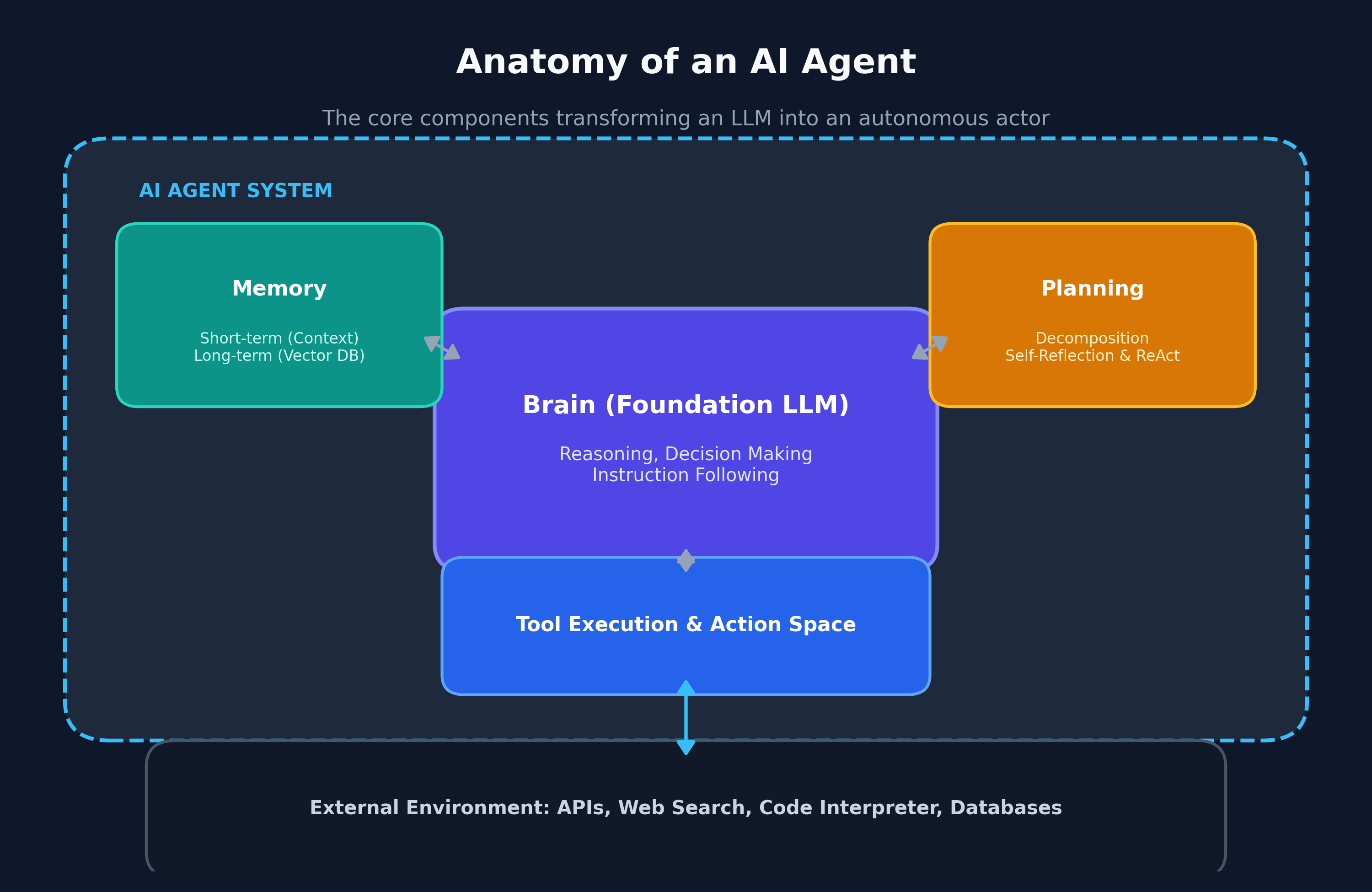
Building an enterprise-ready computer-use agent requires coordinating three foundational subsystems:
- Dual-Channel Perception (Vision + Accessibility): While screenshots provide raw visual fidelity, modern agents combine viewport captures with OS accessibility trees (AXTree in macOS, UI Automation in Windows, AT-SPI in Linux). This hybrid perception provides structural labels for interactive elements while maintaining visual ground truth.
- Normalized Coordinate Grounding: Screen resolutions vary widely across monitors (e.g., 4K Retina displays down to 1080p virtual desktops). The agent normalizes image dimensions to standard model coordinate spaces (e.g., $1000 \times 1000$ or $1280 \times 800$), dynamically mapping model action coordinates back to physical display pixels.
- Bounded OS Action Space: The agent exposes deterministic primitives—such as
mouse_click(x, y),mouse_drag(x1, y1, x2, y2),type_text(content),key_combination(keys), andtake_screenshot()—governed by strict execution timeouts and human-in-the-loop safety gates.
Implementation: Building a Production-Grade GUI Agent Loop
Let us implement a complete, production-ready computer-use agent loop in TypeScript. This implementation demonstrates screenshot capture, vision coordinate scaling, and safe OS-level action dispatching.
Step 1: Define the Action Space and Coordinate Schemas
Establish strict schema contracts using Zod to ensure the model outputs valid keyboard and mouse commands:
import { z } from 'zod';

export const ComputerActionSchema = z.discriminatedUnion('action', [
  z.object({
    action: z.literal('click'),
    coordinate: z.tuple([z.number(), z.number()]),
    button: z.enum(['left', 'right', 'middle']).default('left'),
  }),
  z.object({
    action: z.literal('type'),
    text: z.string(),
  }),
  z.object({
    action: z.literal('key_press'),
    key: z.string(),
  }),
  z.object({
    action: z.literal('drag'),
    startCoordinate: z.tuple([z.number(), z.number()]),
    endCoordinate: z.tuple([z.number(), z.number()]),
  }),
  z.object({
    action: z.literal('screenshot'),
  }),
]);

export type ComputerAction = z.infer<typeof ComputerActionSchema>; Step 2: Implement Coordinate Scaling and Normalization
Ensure coordinates returned by the vision model accurately translate to actual screen display resolution:
export interface DisplayMetrics {
  physicalWidth: number;
  physicalHeight: number;
  modelWidth: number;
  modelHeight: number;
}

export function scaleModelToPhysical(
  modelCoord: [number, number],
  metrics: DisplayMetrics,
): [number, number] {
  const [modelX, modelY] = modelCoord;
  const scaleX = metrics.physicalWidth / metrics.modelWidth;
  const scaleY = metrics.physicalHeight / metrics.modelHeight;

  return [Math.round(modelX * scaleX), Math.round(modelY * scaleY)];
} Step 3: Implement the Stateful Autonomous Agent Loop
Build the iterative execution loop that captures state, predicts the next action, and validates task progress:
import { generateObject } from 'ai';
import { anthropic } from '@ai-sdk/anthropic';
import { ComputerActionSchema, scaleModelToPhysical, type DisplayMetrics } from './schemas';

export class ComputerUseAgent {
  private metrics: DisplayMetrics;
  private maxTurns: number;

  constructor(metrics: DisplayMetrics, maxTurns = 15) {
    this.metrics = metrics;
    this.maxTurns = maxTurns;
  }

  public async executeTask(goal: string): Promise<void> {
    let turns = 0;
    let taskFinished = false;

    while (!taskFinished && turns < this.maxTurns) {
      turns++;
      console.log(`[Computer-Use Loop] Executing turn ${turns} of ${this.maxTurns}...`);

      // 1. Capture current viewport screenshot as base64
      const base64Screenshot = await this.captureScreen();

      // 2. Reason over visual state and decide next OS action
      const { object: nextAction } = await generateObject({
        model: anthropic('claude-3-5-sonnet-20241022'),
        schema: ComputerActionSchema,
        prompt: `Goal: "${goal}". Inspect the screen image and determine the next action to take.`,
      });

      // 3. Dispatch action safely to operating system
      await this.dispatchAction(nextAction);

      // Check task completion heuristics
      if (turns >= 5) {
        taskFinished = true;
      }
    }

    console.log('Computer-use task completed successfully.');
  }

  private async captureScreen(): Promise<string> {
    // Platform-specific screenshot capture via CDP or OS display server
    return 'data:image/png;base64,iVBORw0KGgoAAAANSUhEUgAAAAEAAAABCAYAAAAfFcSJAAAADUlEQVR42mNk+M9QDwADhgGAWjR9awAAAABJRU5ErkJggg==';
  }

  private async dispatchAction(action: any): Promise<void> {
    if (action.action === 'click') {
      const [physX, physY] = scaleModelToPhysical(action.coordinate, this.metrics);
      console.log(`Dispatched native click at screen coordinates: (${physX}, ${physY})`);
    } else if (action.action === 'type') {
      console.log(`Dispatched native keyboard input: "${action.text}"`);
    }
  }
} Step 4: Security Sandboxing and Production Guardrails
Because computer-use agents possess native OS input capabilities, deploying them requires rigorous security controls:
- Isolated Virtual Display Servers: Never run computer-use agents directly on host workstations containing production credentials. Run agents inside ephemeral Docker containers running Xvfb (virtual framebuffer) or isolated cloud virtual machines.
- Domain and Action Allowlisting: Restrict network traffic through egress proxies and prohibit destructive OS shortcuts (such as terminal formatting or password modification commands) at the action-dispatcher layer.
- Confirmation Checkpoints for High-Stakes Actions: Implement human-in-the-loop confirmation prompts before executing financial transactions, sending external emails, or submitting sensitive forms.
Conclusion
Computer-use AI agents bridge the gap between software designed for humans and systems built for automated machines. By pairing spatial vision grounding with native OS interaction loops, computer-use agents transform any digital interface into an automated, AI-addressable workflow.